To install an expert advisor (EA) on MT4, open File → Open Data Folder, copy the .ex4 file into MQL4/Experts and any .dll file into MQL4/Libraries, then restart MetaTrader. Drag the EA from the Navigator onto a chart, tick Allow live trading, and switch on the AutoTrading button. The EA only works while MetaTrader is open and connected, so try it on a demo account first.
Below we go through each step, what each setting means, how to check that the EA is working, how to fix the usual problems and how to update an EA. Installing an EA only makes it run. It says nothing about whether the strategy will make money, and it doesn't remove the risk of loss.
Before You Start
- MetaTrader 4 installed and logged in to your account. Start with a demo account.
- The EA's files. Files for MT4 end in .ex4 (or .mq4 for source code), and they don't work in MT5.
- The manual. It tells you the pair, the timeframe and any settings the EA needs.
Step 1: Download the EA
If you bought the EA on ForexStore, log in and open your Personal Area. Your purchases are listed there, each with a download button. Save the .zip file and unpack it into a folder you can find. It usually holds the EA files, sorted into folders, and a manual. Some products also ask for your trading account number in the Personal Area, and we come back to that in Step 6.
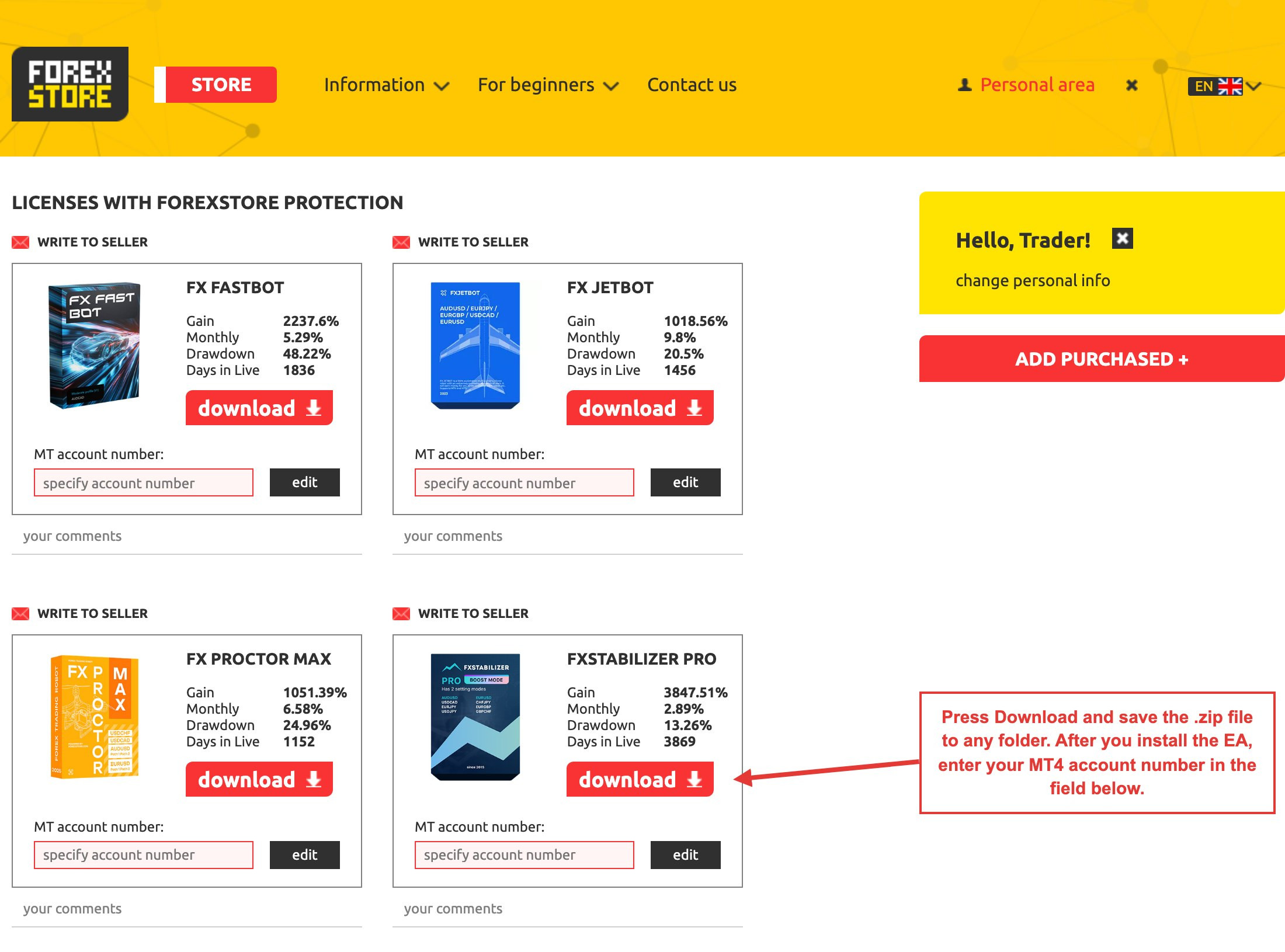
Screenshot from November 2026. The statistics on the cards change as the accounts trade, and past results don't predict future ones.
Step 2: Copy the Files to the Data Folder
Older guides tell you to look in the program folder on drive C. Current versions of MT4 keep these files in a separate data folder, which is often hidden, so let MetaTrader open it for you:
- In MT4, click File → Open Data Folder.
- Open the MQL4 folder.
- Copy each file into its place, and accept any permission request from Windows.
| File | Goes into |
|---|---|
| .ex4 or .mq4 EA | MQL4/Experts |
| .dll library | MQL4/Libraries |
| .set file with settings | MQL4/Presets |
| .ex4 indicator the EA needs | MQL4/Indicators |

Step 3: Restart and Find the EA
Close and reopen MT4. You can also right-click Expert Advisors in the Navigator window and choose Refresh. If you can't see the Navigator, press Ctrl+N. Your EA now appears in the list under Expert Advisors.

Step 4: Attach the EA to a Chart
Open a chart of the pair and timeframe from the manual, then drag the EA onto it, or double-click it in the Navigator. Each chart can run one EA. If an EA trades several pairs, its manual tells you whether it needs one chart or several.
Step 5: Check the Settings Window
A window opens with several tabs. These are the ones that matter:

| Setting | Where | What to do |
|---|---|---|
| Allow live trading | Common tab | Tick it, or the EA can't open trades |
| Allow DLL imports | Common tab | Tick it only if the manual needs it and you trust the source |
| Parameters | Inputs tab | Set them as in the manual, or load a .set file |
A word on DLLs. A .dll file is ordinary code that runs on your computer, and MetaTrader itself labels this option as potentially dangerous, for trusted applications only. EAs sold under ForexStore licensing use a library in the Libraries folder, so they do need this option. Turn it on for that EA in its own window, not for every EA in the terminal.
Leave the strategy settings as they are unless you know why you're changing them. The one you most likely need to set is the size, which Forex EA Settings That Matter covers.
Step 6: Turn On AutoTrading and Add Your Account Number
Press OK, then make sure the AutoTrading button on the top toolbar is on. It's the master switch for the whole terminal: when it's off, no EA can trade, even if everything else is set. The same permission is in Tools → Options → Expert Advisors.
If the top-right corner of the chart shows a smiling face next to the EA's name, the EA is running and allowed to trade. A sad face means it's attached but not allowed to trade.
If your EA came with a ForexStore licence, enter your trading account number in the MT account number field under the product in your Personal Area. That's the number of the MetaTrader account you log in with.
Step 7: Check That It Works
A running EA may not trade for hours or days, because it waits for its own conditions. Instead of waiting, look at the Terminal window at the bottom of MT4 (Ctrl+T):
- Experts tab: messages from the EA, such as the moment it loaded, and its errors.
- Journal tab: messages from the terminal, such as the connection and login.
Leave it on the demo account until you've seen it open and close trades the way the manual describes. Then read How to Backtest an Expert Advisor to check it on past data.
Common Problems
| What you see | Likely cause | Fix |
|---|---|---|
| EA not in the Navigator | Wrong folder, or not refreshed | Use File → Open Data Folder, then restart |
| Sad face on the chart | Live trading not allowed | Press F7 and tick Allow live trading |
| Nothing on the chart at all | EA failed to load | Read the Experts tab |
| A message about DLL calls | DLL imports are off | Allow them if you trust the source, and check the file is in Libraries |
| A licence message | Account number missing or different | Check it in your Personal Area |
| No trades for days | EA is waiting, or AutoTrading is off | Check the button and the manual |
| Wrong pair name | Broker adds a suffix, such as EURUSDm | Attach it to your broker's symbol, and see the manual |
| Orders rejected | Lot below the minimum, or the market is closed | Check the size and the trading hours |
How to Update an EA
- Download the new version from where you bought the EA.
- Check that no trades are open that the update could leave unmanaged, and read what changed.
- Remove the EA from the chart and note your settings.
- Replace the files in MQL4/Experts and MQL4/Libraries, then restart MT4.
- Attach the EA again and check the settings.
The Market tab in MT4 updates only EAs bought through MetaTrader's built-in Market. It doesn't handle EAs you installed yourself.
Keeping the EA Running
An EA stops when MetaTrader closes, your computer sleeps or the internet drops. If that matters for your strategy, a VPS keeps the terminal running: see What Is a Forex VPS? Don't run the same EA on the same account from two places, or you will double every trade. Also note that MetaTrader's built-in Virtual Hosting doesn't allow DLLs, so an EA that uses one needs an ordinary VPS.
FAQ
Where do I put an EA in MT4?
Click File, then Open Data Folder, and copy the .ex4 file into MQL4/Experts. Any .dll file goes into MQL4/Libraries. Then restart MetaTrader so the EA appears in the Navigator.
Why is my EA not trading?
First check the AutoTrading button, then the face on the chart, then the Experts tab. If all three look fine, the EA may simply be waiting for its conditions, as many EAs trade rarely. Check the manual for the pair, timeframe and hours.
Do I have to allow DLL imports?
Only if the EA needs them, which the manual will say. A DLL can run code on your computer, so turn this on only for software from a source you trust, and only for that EA.
Can an EA run with my computer off?
No. An EA runs inside MetaTrader, so the terminal has to stay open and connected. To keep it running while your computer is off, use a VPS.
Does the same EA work in MT4 and MT5?
No. An .ex4 file runs only in MT4, and MT5 needs its own .ex5 version, which goes into MQL5/Experts. Check which versions your product includes.
The Bottom Line
- Use File → Open Data Folder: EAs go into MQL4/Experts, libraries into MQL4/Libraries.
- Restart, then attach the EA to the chart the manual names.
- Tick Allow live trading, and allow DLLs only for software you trust.
- The AutoTrading button has to be on, and a smiling face confirms it.
- Read the Experts tab when something's wrong, and run a demo first.
Still choosing? Read How to Choose the Best Forex Robot, or browse every expert advisor in the catalog.
This article is educational and is not investment advice. Trading leveraged products involves risk of loss, and an EA can lose money.